
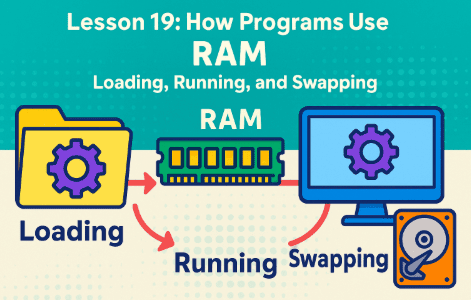
Quick Recap Before We Start
In the last lesson, we discovered how programs use RAM:
-
Programs are first loaded from storage into RAM.
-
Inside RAM, they are neatly divided into code, data, heap, and stack.
-
The operating system makes sure multiple programs share RAM fairly.
-
If RAM is full, some programs get swapped to storage temporarily.
But we also saw the problem: what if RAM is just too small for all the programs you want to run? That’s where virtual memory comes in.
Step 1: What is Virtual Memory?
Let’s start with the name itself:
-
Virtual means “not real, but looks real.”
-
Memory here means RAM.
So, virtual memory is “pretend RAM.”
It tricks programs into thinking they have more RAM than actually exists. The operating system does this by combining real RAM with space on your hard drive or SSD.
Think of it like a tiny apartment.
-
Your RAM is like the rooms in your apartment.
-
But if you buy too much furniture (open too many programs), you can’t fit everything inside.
-
So, you rent a storage unit down the street. When your apartment is full, you move some things into the storage unit, but you still keep a note of where everything is.
That’s exactly what virtual memory does.
Step 2: How Virtual Memory Works Behind the Scenes
Here’s the key trick:
Every program thinks it has the computer’s entire memory all to itself. If you have 8 GB of RAM, your program doesn’t know it. It just believes it has a big, continuous space.
But in reality, the operating system is playing a game:
-
Some of that program’s data is really in RAM.
-
Some of it might be in the hard drive or SSD (the “storage unit”).
-
The operating system quietly moves pieces in and out as needed.
The program never notices the difference. To it, memory looks smooth and endless.
Step 3: Paging – The Magic Trick That Makes It Work
Now, how does the operating system manage this illusion?
The answer is paging.
What is a Page?
A page is a small, fixed-size block of memory. Typically, one page is 4 KB (kilobytes), though it can be bigger on some systems.
Imagine dividing your entire apartment (RAM + storage unit) into identical boxes. Each box is exactly the same size.
Paging in Action
-
When a program runs, the operating system splits its memory into pages.
-
Some of these pages are in RAM.
-
Some are quietly sitting on disk.
-
When the CPU needs a page that isn’t in RAM, the operating system quickly fetches it from the disk and swaps it in.
This swap is called a page fault (not a mistake, just a signal that the page wasn’t in RAM and needs to be brought in).
It’s kind of like a board game with tiles:
-
The board (RAM) only has a limited number of slots.
-
But you can store extra tiles in a box (disk).
-
If you want to play with a tile that isn’t on the board, you take one out and put the new one in.
Step 4: Page Tables – The Memory Map
To keep track of everything, the operating system uses a page table.
This is like a big address book:
-
Each program’s virtual address (the pretend memory it thinks it has) points to a real place, either in RAM or on disk.
-
If it’s on disk, the page table notes where to fetch it from.
So when the CPU says: “Give me the data at address 0x1234,” the operating system looks at the page table to see whether that address is in RAM or on disk.
Without the page table, the CPU would be completely lost.
Step 5: Why Virtual Memory is Amazing
Virtual memory solves many problems:
-
Bigger Programs on Small RAM – You can run a program that needs 12 GB of memory on a computer with only 8 GB of RAM. The extra 4 GB is simulated using disk space.
-
Isolation – Each program thinks it has its own memory. One program can’t “peek” at another’s data. This adds safety.
-
Efficiency – Not all parts of a program are used at the same time. Virtual memory only loads the parts that are needed into RAM, saving space.
It’s like having a magic wardrobe that always has the clothes you want right at the front, while the rest are stored in the back.
Step 6: The Downside – Speed
Of course, there’s no free lunch.
While virtual memory is amazing, RAM is much faster than disk storage.
-
Accessing data from RAM takes nanoseconds (billionths of a second).
-
Accessing data from SSD takes microseconds (millionths of a second).
-
Accessing data from HDD takes even longer — milliseconds (thousandths of a second).
This means that when the operating system fetches a page from disk, the CPU has to wait. If it happens too often, your computer feels sluggish.
This is why upgrading RAM makes such a big difference in performance — it reduces how often the system needs to fall back on virtual memory.
Step 7: Real-World Example – Opening 100 Browser Tabs
Imagine you open 100 tabs in Google Chrome.
-
Each tab is like a mini-program that needs memory.
-
At first, RAM fills up with all the active tabs.
-
But when you stop using some tabs, the operating system moves their memory pages onto disk.
-
When you click back on an old tab, it may take a second to reload — because the page is being fetched back into RAM.
That “pause” you feel is virtual memory at work.
Step 8: Summary
Let’s wrap this up in simple words:
-
Virtual memory is like borrowing extra space from your hard drive to pretend you have more RAM.
-
It works by splitting memory into fixed-sized blocks called pages.
-
The page table keeps track of where each page is.
-
When a program needs something not in RAM, the operating system fetches it from the disk (page fault).
-
This allows bigger programs to run, improves safety, but can slow things down.